
Shot Charts
There are several ways to see shot charts in the app showing the team or individual player shots for a game or a summary for a season.
While scoring a game you can select the player and press the “Info” button that appears in the lower left corner or to select the player number from the horizontal list of player scores at the top of the screen (not available for smaller iPhones).
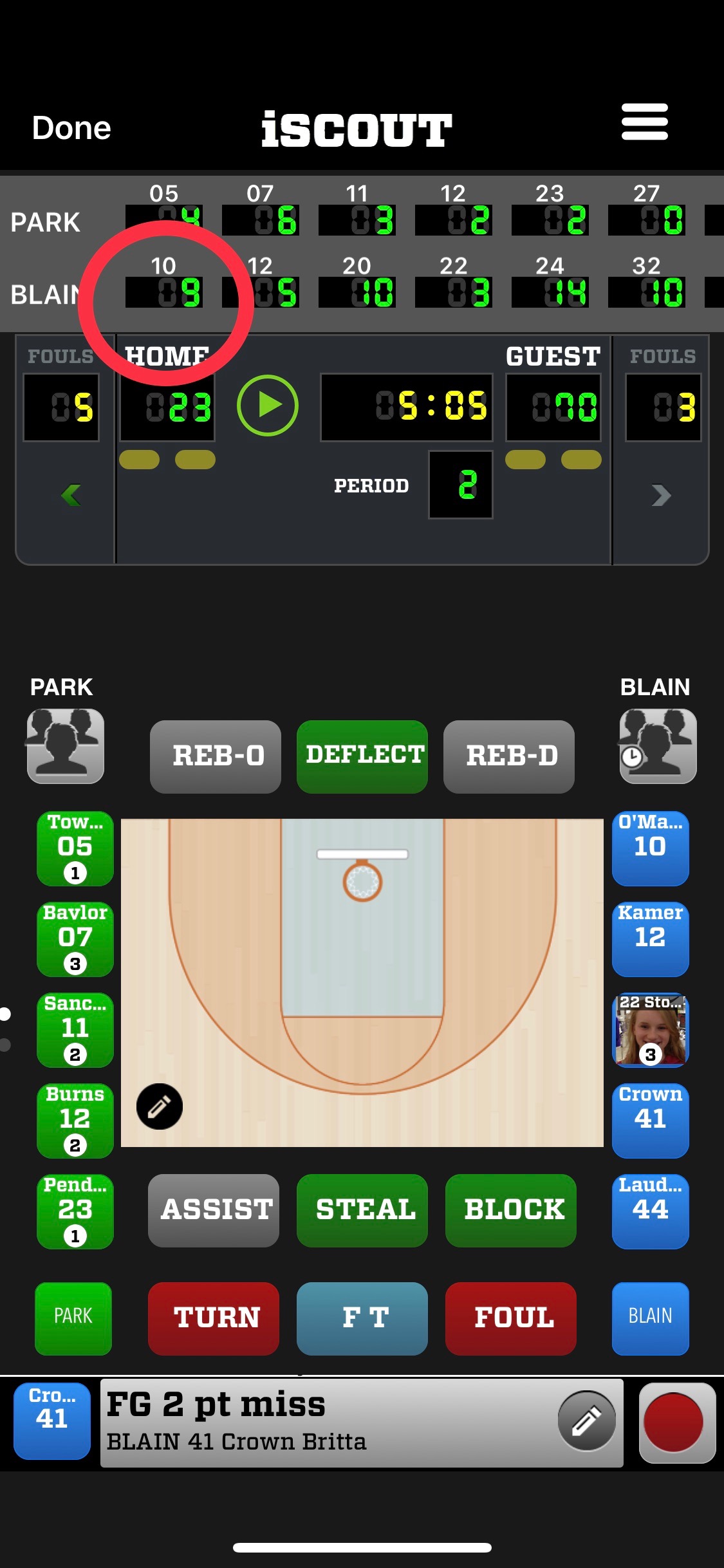
This will show the player stats for the game.
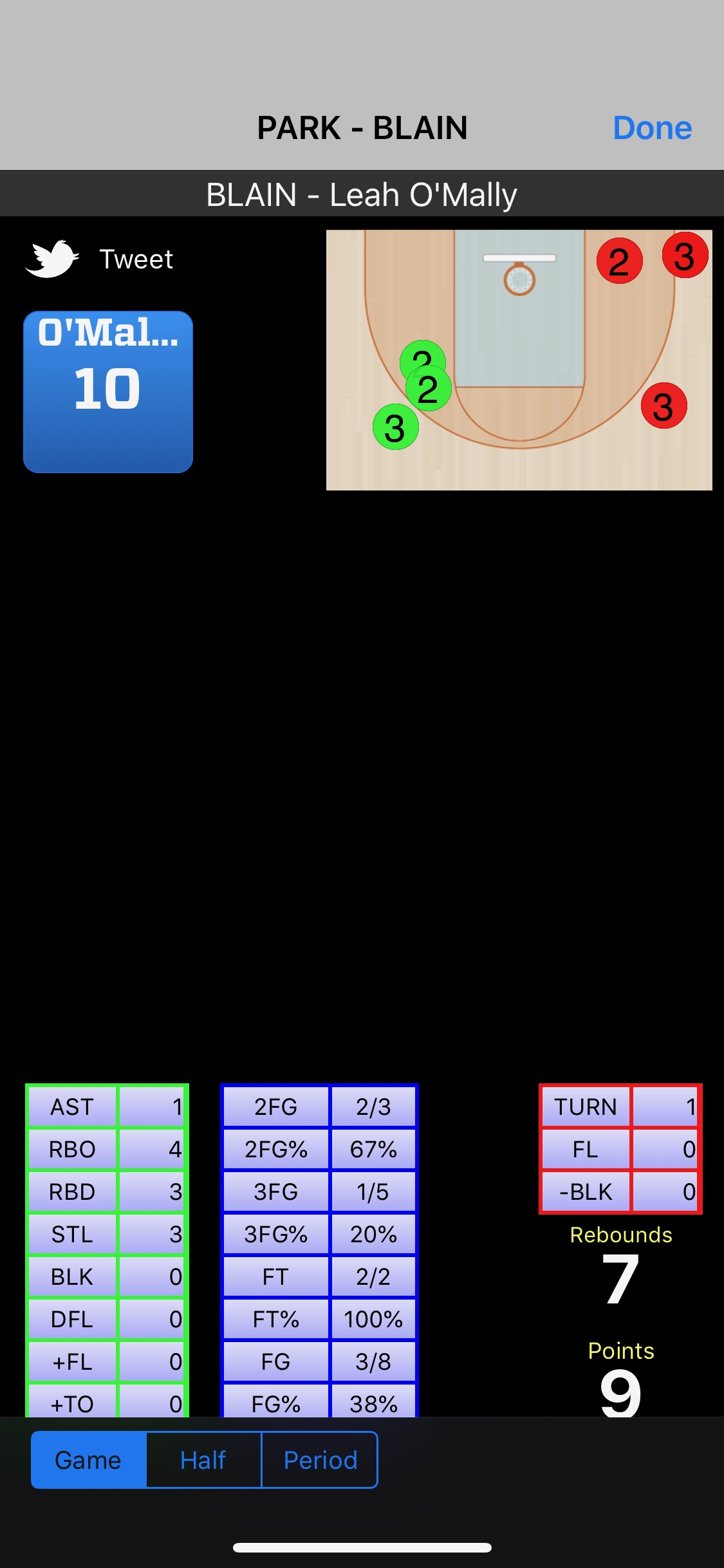
Additionally most reports have the option to see the shot charts for a team, per player, or for an individual player.
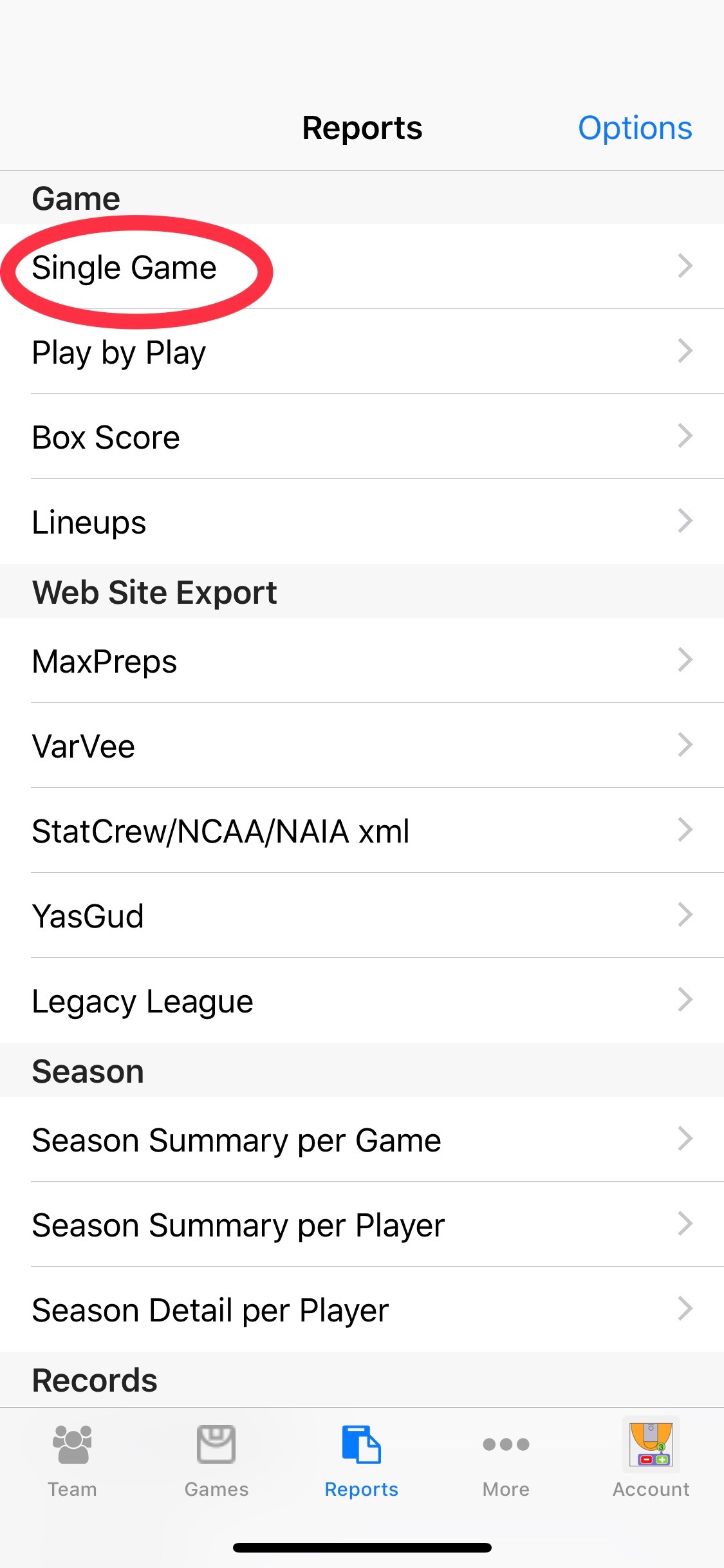
Using single game report as an example.
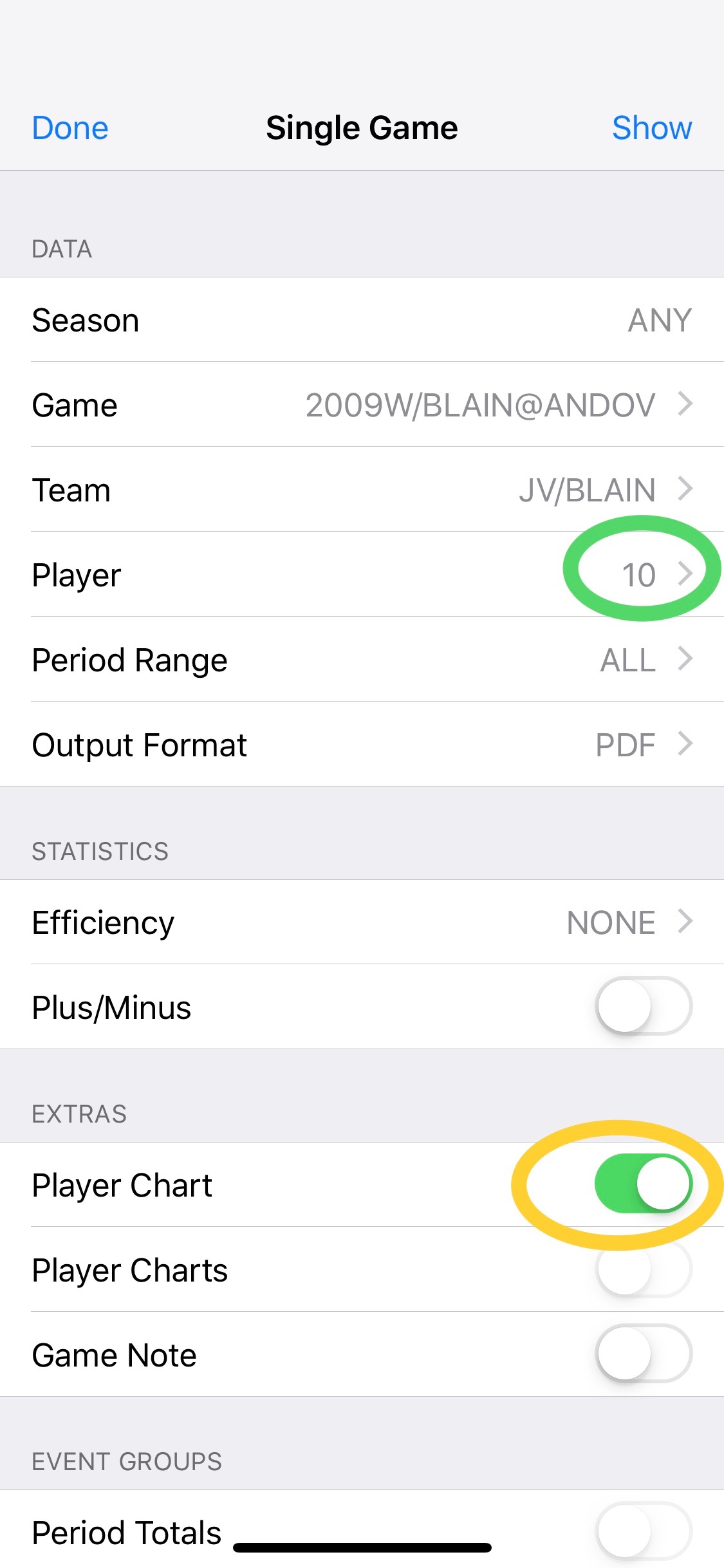
The green circle shows that player 10 is selected vs the entire team. Be sure to check the Player Chart option. Then show the report.
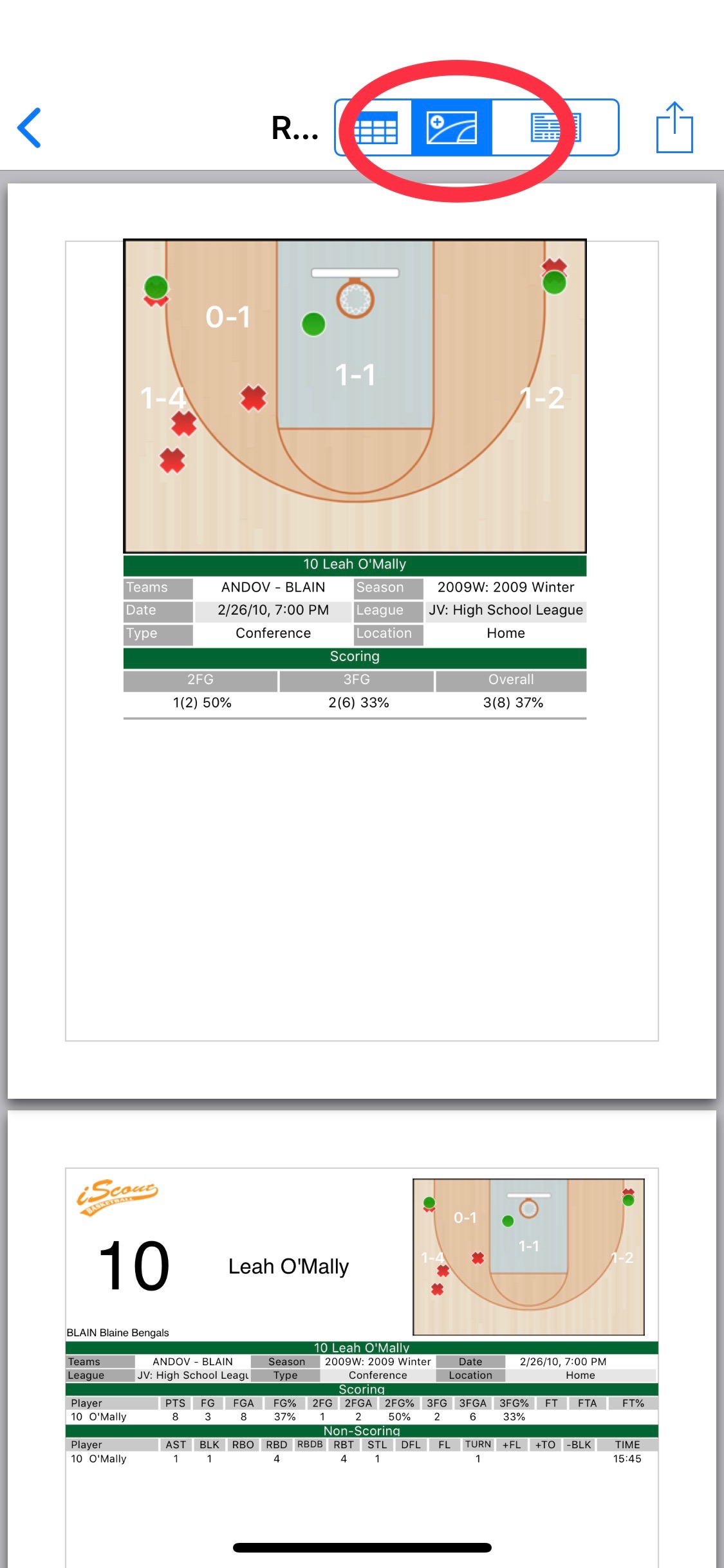
Select the chart from the choices at the top of the screen.
If season reports it will show all shots for a season. If you selected All Players vs an individual players you would see a scrolling list of shot charts.
Comments
0 comments
Article is closed for comments.